
Display and reading preferences: Bronva, the way you read best
People read in different ways. Some like small, tidy text and a compact feed. Others need larger type, more breathing room, stronger contrast or less movement on the screen. Bronva lets you set all of this up once, in plain language, so the whole site is comfortable for you. Try the options in the live preview below, then set them up in your own settings.
- 🔠 Text size and spacing
- 🌗 Light, dark and contrast
- 📰 Feed layout
- 🎞️ Less motion
- 🕒 Dates and times
- 🔞 16 and over
- 🌍 Made for everyone, everywhere
- 🆓 Free to use
- ⏱️ About 8 minute read
In 30 seconds: log in, open your profile, then Settings. Choose your text size, spacing, contrast and motion options, and press Save. Not sure where to start? Try the quick guide below. Bronva is for people aged 16 and over.
Why display and reading preferences matter
A social network is something you read for hours across a week. It should be comfortable to read, not tiring.
Bronva was built to be clean, fast and easy on the eyes, and we know that one design cannot suit everyone. Eyesight, screens, lighting, habits and personal taste all differ. Instead of burying display options in layers of menus, Bronva puts them in one organised place with simple switches and choices. You pick what helps, and everything else stays out of your way.
Comfort first
Adjust text size, spacing, line length and fonts so long reading sessions feel easier.
Calm when you want it
Reduce motion, pause GIFs, switch off autoplay and hide counts for a quieter, less distracting feed.
Made for the world
Right-to-left languages, non-Latin typography and times in your own time zone are all supported.
Light and fast
Data-saver options help on slow connections and older devices, so Bronva stays quick.
See it in action
Here is how Bronva looks in light and dark appearance, with the docked Messenger open.
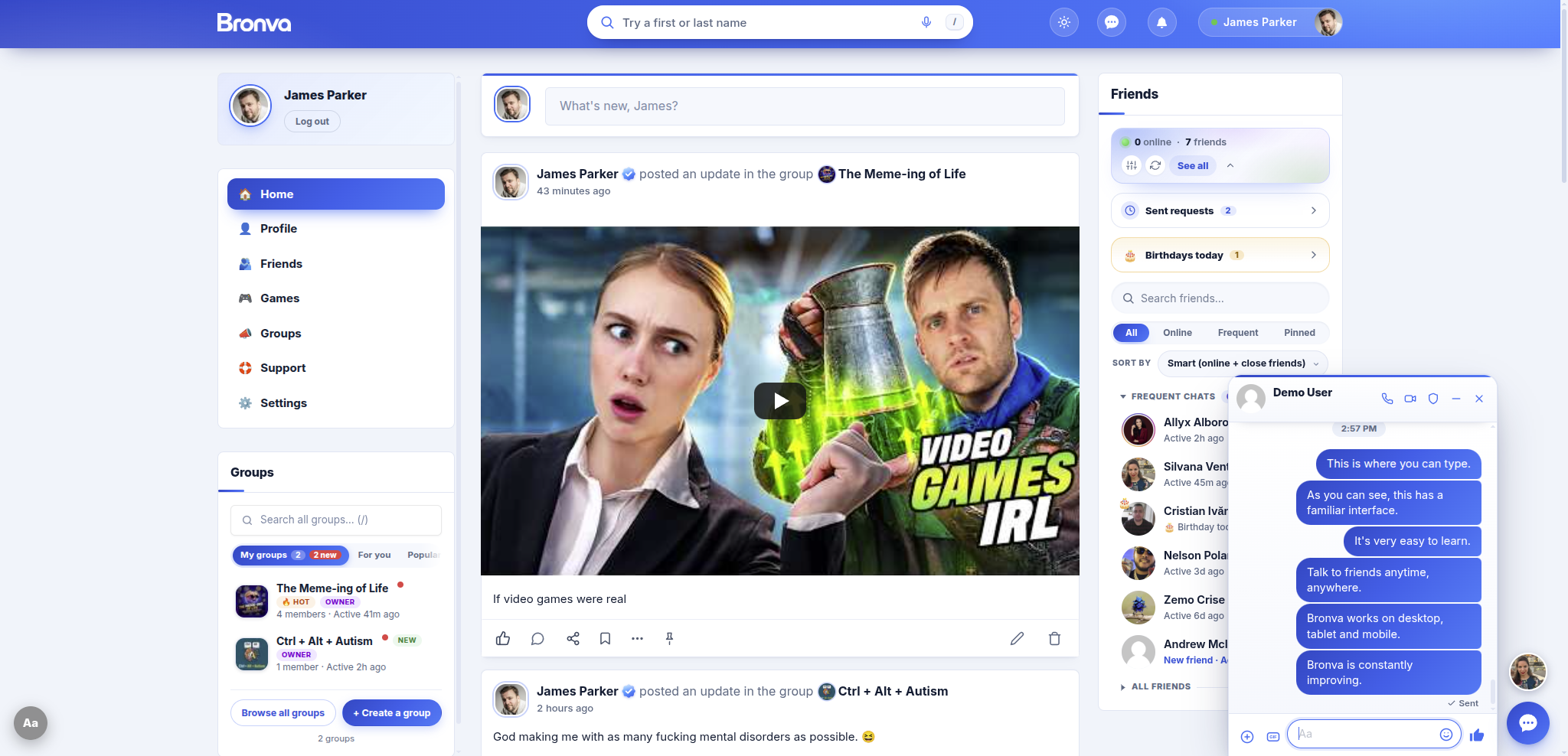

More views (tap to enlarge)


Try it: a live reading preview
Use the controls to see how different settings change the way text looks. This preview is a demonstration only. It does not change your Bronva account, and nothing you try here is saved or sent anywhere. When you find a combination you like, set it up in your Bronva settings using the steps below.
A quiet Sunday in the garden
2 hours ago18 Nov 2026, 09:41 · Public
Today I finally finished the little vegetable patch I have been planning all spring. The beans are climbing, the lettuce is up, and the whole place smells of fresh soil. I took a few photos to share, and I would love to hear what you are growing this year. If you want the planting plan, I have written it all down here.
Reading should feel effortless. With the right text size, spacing and line length, even a long post can be easy on your eyes, whatever device you are using.
example.com
This is a longer post that would normally be shortened so your feed stays tidy. Switch on “Always expand long posts” to read it in full without tapping anything, which is handy if you like to see everything at once.
See more⚠️ Content warning: spoilers
The scarecrow was the one who ate all the strawberries.
¡Hola! Hoy planté frijoles y lechuga. Translate
Today’s update: tomatoes, slugs and sunshine.
Quick presets: pick a starting point
Not sure where to begin? These combinations are popular starting points. Switch on the options listed, then fine-tune them to taste.
Easier reading
- Larger text size
- Extra line spacing
- Extra readable font
- Underlined links
- Reading guide line
Calm and quiet
- Reduce motion
- No autoplay and paused GIFs
- Hide counts
- Hide link previews
Low data
- Data saver
- Text-only feed
- No autoplay
- Hide link previews
Night reading
- Dark appearance
- Night tint
- Dim bright images
- Late-night reminder
Focus mode
- Feed shield
- Stop-scroll nudge
- Daily time limit and break reminders
- Hide counts
Keyboard and screen reader
- Skip-to-content link
- Strong keyboard focus outline
- Larger tap targets
- Keyboard shortcuts and the Listen button
Five quick wins to try first
- Text size. Get this comfortable first, because everything else builds on it.
- Line spacing and line length. More space and shorter lines make long posts easier to follow.
- Appearance. Use dark appearance or night tint if bright screens tire you.
- Motion. Reduce motion, switch off autoplay and pause GIFs for a calmer feed.
- Feed layout. Try a compact or text-only feed and hide counts if you prefer a quieter view.
Which settings suit you? A quick guide
Pick the statement that sounds most like you and a suggestion appears. Nothing is saved or sent anywhere.
Compare the presets side by side
| Option | Easier reading | Calm | Low data | Night | Focus | Keyboard |
|---|---|---|---|---|---|---|
| Larger text and spacing | ✓ | – | – | – | – | – |
| Extra readable font | ✓ | – | – | – | – | – |
| Underlined links | ✓ | – | – | – | – | – |
| Reduce motion | – | ✓ | – | – | – | – |
| No autoplay | – | ✓ | ✓ | – | – | – |
| Paused GIFs | – | ✓ | – | – | – | – |
| Hide counts | – | ✓ | – | – | ✓ | – |
| Hide link previews | – | ✓ | ✓ | – | – | – |
| Data saver and text-only feed | – | – | ✓ | – | – | – |
| Night tint and dimmed images | – | – | – | ✓ | – | – |
| Feed shield and stop-scroll nudge | – | – | – | – | ✓ | – |
| Skip link, focus outline, tap targets | – | – | – | – | – | ✓ |
Find the setting you need
Choose a category to filter the list. This works without scripts, so it should work on any device.
Where to find your display settings
- Log in to Bronva and open your profile.
- Open Settings from the sidebar’s “Profile & Account” button. On a phone or tablet, open the menu first if you cannot see the sidebar.
- Search or browse. Long settings pages are split into collapsible sections with icons and short descriptions. Use the search box to filter every setting, or Expand all and Collapse all to see everything.
- Choose and save. Use the simple on/off switches and choice cards. The Save button stays pinned to the bottom of the screen with a counter of unsaved changes. You can discard changes, or press Ctrl+S (Cmd+S on Mac) to save.
Messenger display settings apply instantly as you change them. You can also open the display options panel on the feed for quick changes while you browse.
Text and reading
Text size
Make text larger or smaller across Bronva, so posts, comments and menus are comfortable at a glance.
Line spacing and line length
Increase reading spacing, and shorten or lengthen lines of text. Many people find shorter lines with extra spacing much easier to follow.
Font choice
Choose between the system font, an extra-readable style, a serif font or a monospace font.
Reading guide and progress bar
Show a reading guide line that follows your pointer, and a progress bar that shows how far through a page you are.
Underlined links
Underline every link so it stands out clearly, without relying on colour alone.
Listen to posts
Use the Listen button to have posts read aloud with your own device’s voice, which is handy when you would rather hear than read.
Small text with tight spacing and long lines can be tiring to read, especially after a while, on a small screen or in dim light.
Larger text, relaxed spacing and shorter lines make the very same words much easier to follow.
Typography on Bronva is also tuned for non-Latin scripts, so text in languages such as Arabic, Hindi, Japanese or Thai looks right. For more on accessibility, see Accessibility Features.
Feed layout
Your feed can be as busy or as calm as you like.
| Option | What it does |
|---|---|
| Compact feed | Fits more posts on screen with tighter spacing. |
| Text-only feed | Focuses on words by tidying away heavy visuals, which is also helpful on slow connections. |
| Show more / Read more | Long posts and comments are shortened with a “See more” link. You can choose to always expand them instead. |
| Hide counts | Hide reaction and comment counts so you can read without comparing numbers. |
| Hide link previews | Remove the preview cards under shared links for a simpler look. |
| Profile photo shape | Choose the shape your profile photos appear in. |
| New-post markers and own-post tint | See which posts are new since your last visit, and give your own posts a gentle tint so they are easy to spot. |
| Feed shield and stop-scroll nudge | Hide the feed until you choose to open it, and get a gentle nudge to stop scrolling. |
| Accent colour | Pick blue, purple, green, orange, pink, teal or red. Your profile tabs and settings area follow your choice. |
You can also use keyboard shortcuts to move through your feed, such as j and k to jump between posts, and ? to see the full list.
Pro tip: try a compact feed with larger text. You see more posts at once, and they stay comfortable to read.
Motion, media and colour
Reduce motion
Calm animations and transitions across Bronva. Bronva also follows your device’s reduced-motion setting automatically, and it shows a short text message instead of animations in its optional surprise effects.
No autoplay, paused GIFs
Stop videos from playing on their own and keep GIFs still until you tap them.
Light, dark and contrast
Bronva follows your device’s light or dark setting, supports high-contrast preferences, and gives you options to raise contrast yourself.
Night tint and greyscale
Warm the colours for late-night reading, or switch to greyscale for a calmer look.
Dim and blur images
Dim bright images, or blur photos and videos until you tap them.
Data saver
Load images only as needed, which helps on slow connections or limited data. Bronva also respects your device’s own data-saver setting.
Pro tip: Bronva already follows your device’s reduced-motion setting, so you may not need to switch anything on yourself.
Many display features also help on small screens: enlarge tap targets, show a back-to-top button, add a skip-to-content link, and use a strong keyboard focus outline. See Using Bronva on Mobile.
Dates, time and page direction
- Exact dates and times. Choose precise dates and times instead of relative ones such as “2 hours ago”. Times always show in your own time zone.
- Right-to-left support. Bronva detects right-to-left languages automatically for each post, and you can also choose left-to-right or right-to-left page direction yourself.
- Language. The interface language follows your browser where a translation exists, and you can change it. Posts in other languages show a Translate link that you can customise or hide. See Languages and Translation.
Messenger display options
Pro tip: Messenger also has quiet hours and a one-hour snooze, handy when you want a break without logging out.
Bronva Messenger has its own display controls, so chats can look the way you like even if your feed looks different:
- Light, dark or automatic chat windows
- Text size and comfortable or compact spacing
- Reduced animations and a data-saver mode
- Link previews on or off
- Whether Enter or Ctrl+Enter sends a message
- Voice-message playback speed
The friends panel can also use automatic, dark or light appearance, comfortable or compact rows, and your choice of message preview style. See Messenger Privacy Settings and Personalising Your Experience.
Your 2-minute setup checklist
Tick each step as you go. The ticks are just for you and are not saved or sent anywhere.
Support for different needs
Everyone reads differently. These are options people often try. They are comfort tools, not medical advice, and results vary from person to person.
Low vision
- Larger text and high contrast
- Strong keyboard focus outline
- Enlarged mouse pointer
- Browser zoom and the Listen button
Reading differences
- Extra readable font
- Extra line spacing and shorter lines
- Reading guide line
- Listen to posts read aloud
Motion sensitivity
- Reduce motion
- No autoplay and paused GIFs
- Surprise effects show text instead when your device asks for less motion
Light sensitivity
- Dark appearance and night tint
- Dim bright images
- Greyscale and blur until tap
Focus and overwhelm
- Compact or text-only feed
- Hide counts and link previews
- Feed shield and stop-scroll nudge
- Quiet hours in Messenger
Hand and motor comfort
- Larger tap targets
- Keyboard shortcuts
- Choose what the Enter key does in chats
- Voice messages in Messenger
Where your choices are saved
Saved to your account
Settings stored on your account follow you to any device you log in on.
Remembered on this device
A few display choices stay on the device and browser where you set them. Clearing browser data resets them.
Instant in Messenger
Messenger display settings apply the moment you change them.
Your device’s own settings
Bronva also respects your device’s dark mode, reduced motion, high contrast and data saver settings.
Tips for your device
- Switch on larger tap targets so buttons are easier to press.
- Use data saver on mobile data.
- Profile tab rows scroll sideways, so swipe to see every tab.
- Add Bronva to your home screen for an app-like experience.
- Chats open as a sheet that rises from the bottom of the screen.
- Try a shorter line length in portrait, and a wider one in landscape.
- Pick an accent colour to make tabs easier to spot.
- Use your browser’s zoom (Ctrl and +, or Cmd and +) with Bronva’s text size.
- Learn the keyboard shortcuts, and press ? to see them.
- Several chats can stay docked at the bottom of the screen at once.
- Switch on the skip-to-content link and a strong focus outline.
- Use Tab and Shift+Tab to move, and j and k to move between posts.
- Use the Listen button to hear posts read aloud with your device’s voice.
Bronva and your device’s own settings
Bronva listens to the settings you have already chosen on your phone, tablet or computer.
| Your device setting | What Bronva does | Where to change it |
|---|---|---|
| Dark or light mode | Follows it automatically | Your device or browser |
| Reduce motion | Calms animations and removes surprise effects | Your device accessibility settings |
| High contrast | Respects it | Your device accessibility settings |
| Data saver | Loads less to save data | Your device or browser |
| Text size or zoom | Works alongside Bronva’s own text size option | Your device or browser |
| Screen reader or keyboard only | Supported throughout | Your device accessibility settings |
Keyboard shortcuts for faster reading
On a computer, shortcuts save time. Mac users press Cmd instead of Ctrl. Single-key shortcuts only work when you are not typing in a box.
Made for people all over the world
Bronva is used in many countries, languages and time zones, and the display options are designed with that in mind.
Your language
The interface follows your browser’s language where a translation exists, and you can change it at any time.
Right-to-left scripts
Posts in languages such as Arabic, Hebrew and Persian are detected automatically, and you can choose your page direction.
Non-Latin typography
Text in scripts such as Devanagari, Bengali, Thai, Chinese, Japanese and Korean is tuned to look right.
Your time zone
Times show in your own time zone, and you can choose exact dates instead of “2 hours ago”.
Any connection
Data saver and text-only options help on slow networks, limited data plans and older devices.
Help near you
The Safety Centre shows emergency numbers and help lines for your own country, and you can choose your country in your settings.
Age and local law. Bronva is for people aged 16 and over everywhere. If the law where you live sets a higher minimum age for using social networks, you must meet that higher age. Some display features may also differ between countries and devices.
Settings through your day
Morning commute
Data saver, compact feed and larger tap targets for one-handed scrolling.
Work break
Feed shield, stop-scroll nudge and hidden counts to keep breaks short.
Evening
Automatic appearance, a reading guide line, or the Listen button while you cook.
Night
Dark appearance, night tint and dimmed images.
Wind down
Quiet hours, snooze in Messenger and the late-night reminder.
Myths and facts
Hover, tap or focus a card to flip it.
Real-world examples
These are illustrative examples to spark ideas. They are not real members.
Priya, on a slow train connection
- Data saver and text-only feed
- No autoplay
- Hide link previews
Tomás, reading before bed
- Dark appearance and night tint
- Dim bright images
- Late-night reminder
Amira, reads Arabic and English
- Right-to-left detection per post
- Translate link on other languages
- Exact dates in her time zone
Kenji, easily distracted
- Feed shield and stop-scroll nudge
- Hide counts
- Daily time limit
Comfort tips for long reading sessions
Light the room
A well-lit room usually feels easier than a bright screen in the dark. Adjust your screen brightness to match.
Take regular breaks
Look away from the screen now and then. Bronva’s break reminders can nudge you.
Make text comfortable
If you lean towards the screen, raise the text size or line spacing instead.
Cut the clutter
A compact or text-only feed, hidden counts and the feed shield can make scrolling feel calmer.
Wind down at night
Try night tint, dimmed images and quiet hours in the evening.
Set up comfortably
Hold your device at a comfortable distance and angle, and sit in a position you can keep for a while.
These are general comfort tips, not medical advice. If you have sore eyes, headaches or changing vision, please speak to a qualified professional.
Troubleshooting
I changed a setting but nothing happened
Check the unsaved changes counter at the bottom of the screen and press Save (or Ctrl+S, Cmd+S on Mac). Messenger settings apply instantly. If it still looks the same, refresh the page.
My display choices disappeared
Some choices are remembered only on the device and browser where you set them. Clearing browser data, using a private window or switching devices means you may need to choose them again.
The text is still too small
Raise the text size in your settings, then add your browser’s zoom (Ctrl and +, or Cmd and + on Mac). Your phone or computer’s own accessibility text-size setting also helps.
Dark mode does not match what I want
Bronva follows your device’s light or dark setting. Change it in your device or browser settings. Messenger and the friends panel also let you choose light, dark or automatic separately.
Things are still moving
Switch on Reduce motion, switch off autoplay and pause GIFs. Also check your device’s own reduced-motion setting. Content embedded from other sites follows its own controls.
A keyboard shortcut is not working
Single-key shortcuts do not work while you are typing in a box. Some keyboard layouts, browsers and extensions use the same keys. Press ? to see the current list.
I cannot find an option mentioned here
Use the search box on your Settings page. Some options depend on your browser and device, and options may be added or changed over time. Tell us what you are looking for and we will help.
Everything looks too big after zooming
Reset your browser zoom with Ctrl and 0 (Cmd and 0 on Mac), then adjust Bronva’s own text size instead.
Images look too dark
Switch off “Dim bright images” and night tint in your settings, and check your device’s own night mode or brightness.
My screen looks different from the screenshots
Bronva is improved all the time, and your own display choices change how it looks. Appearance can also vary between devices and browsers.
I want to start again
Discard unsaved changes, undo your last save, or reset options to their defaults at any time.
Still stuck? Email support@bronva.com. Please never send your password.
Display, privacy and safety: what is where
These are three different areas. Display options only change how Bronva looks to you.
Display and reading
Text, colour, motion and layout. You are here.
Privacy
Who can see your profile and posts. See Changing Privacy Settings.
Safety
Blocking, muting and reporting. See the Safety Centre, Blocking and Muting and Reporting Content.
Glossary
- Accent colour
- The highlight colour used for tabs and settings.
- Autoplay
- Videos that start playing without you pressing play.
- Contrast
- The difference between text and its background. Higher contrast is easier to read.
- Data saver
- A mode that loads less so Bronva works better on slow or limited connections.
- Focus outline
- The visible outline showing which item the keyboard is on.
- Greyscale
- Showing everything in shades of grey.
- Line length
- How wide a block of text is. Shorter lines are often easier to follow.
- Night tint
- A warm colour overlay for comfortable reading at night.
- Reduced motion
- A setting that calms animations and transitions.
- Right-to-left (RTL)
- Scripts such as Arabic and Hebrew that are read from right to left.
- Screen reader
- Software that reads a page aloud for people who cannot see it well.
- Skip-to-content link
- A keyboard shortcut link that jumps straight to the main content.
- Compact feed
- A tighter layout that fits more posts on screen.
- Feed shield
- Hides the feed until you choose to open it.
- Quiet hours
- Times when notifications and sounds are paused.
- Link preview
- A card showing the title, description and image of a shared link.
- Time zone
- The region whose clock your device uses. Bronva shows times in yours.
- Exact date
- A precise date and time shown instead of “2 hours ago”.
- Content warning
- A notice that hides a post until you choose to reveal it.
- Muted words
- Words or phrases you choose to hide from your feed.
- Tap target
- The area you touch to press a button. Larger ones are easier to hit.
- Responsive
- A layout that adjusts to your screen size, from phones to desktops.
Good to know
Some settings stay on your device. A few display choices are remembered on the device and browser you set them on. If you clear your browser data, switch devices or use a private window, you may need to choose them again. Settings saved to your account follow you between devices.
Options depend on your device. Features such as voice reading, on-device translation, desktop alerts and some visual effects rely on your browser and operating system, so we cannot promise every option will behave identically everywhere. Bronva is continually improved, so options may be added, changed or retired over time.
The live preview is a demonstration. It gives a sense of how settings feel, but your real experience depends on your screen, browser and device, and the preview does not change your account.
Display tools are aids, not advice. Reading tools, tints and reminders are designed to make Bronva more comfortable. They are not medical or professional advice. If you have difficulty with vision, reading or screen use, please speak to a qualified professional.
Display choices change what you see, not the rules. Hiding counts, text-only layouts and similar options only affect your own view. The standards that apply to everyone under our Terms and Conditions and Community Guidelines stay the same, and reporting and blocking tools are always available.
Using Bronva is subject to our Terms and Conditions, Community Guidelines and Privacy Policy. If anything on this page differs from those documents, those documents apply. Nothing on this page limits any rights you have under applicable law. Bronva is for people aged 16 and over. If you or someone else is in immediate danger, contact your local emergency services straight away (for example 999 in the UK, 911 in the US and Canada, 112 across the EU, or 000 in Australia). You can find help lines for your country at findahelpline.com.
Frequently asked questions
How do I make the text bigger?
Open your profile, go to Settings, and look for the text size option in the comfort and display settings. You can also use the display options panel on the feed. Your browser’s own zoom (Ctrl and + on Windows, Cmd and + on Mac) works too.
Does Bronva have a dark mode?
Bronva follows your device’s light or dark setting, and Bronva Messenger and the friends panel also let you choose light, dark or automatic for yourself.
Can I stop videos and GIFs moving on their own?
Yes. You can switch off autoplay, keep GIFs paused until you tap them, and reduce motion across the site.
Will my settings follow me to another device?
Settings stored on your account do. A few display preferences are remembered only on the device and browser where you chose them, so you may need to set them again on a new device.
Can I show exact dates instead of “2 hours ago”?
Yes. Choose exact dates and times in your settings, and they will be shown in your own time zone.
Does Bronva work with screen readers and keyboard navigation?
Yes. Bronva supports keyboard navigation and screen readers, and offers options such as a skip-to-content link and a strong focus outline. See our Accessibility Statement.
Is it safe to use these options on a shared or public computer?
Settings saved to your account follow you, so log out when you finish on a shared device. A few display choices are remembered on the device itself, so clear them afterwards if you want a clean slate.
How do I make buttons bigger?
Switch on larger tap targets in your comfort settings. This is helpful on touch screens and for anyone who finds small buttons hard to press.
Will the options work in an older browser?
Core features work in most browsers, but some effects and visual extras need a reasonably recent one. Keeping your browser up to date gives the best experience.
Will I lose my settings if I log out?
No. Settings stored on your account are still there when you log back in. A few device-only choices may need setting again if you clear your browser data.
Which accent colours can I choose?
You can pick blue, purple, green, orange, pink, teal or red. Your profile tabs and settings area follow your choice.
Does Bronva support Arabic, Hebrew and other right-to-left languages?
Yes. Right-to-left text is detected automatically for each post, and you can also choose left-to-right or right-to-left page direction yourself.
What happens if my connection drops?
You can install Bronva on your device as an app, and it shows an offline page when the connection drops. Most features need a connection to work.
I read more than one language. What can I do?
Choose the interface language you prefer. Posts written in other languages show a Translate link, which you can customise or hide.
Will these options change what other people see?
No. Display and reading options only change your own view of Bronva. They do not change your posts or how anyone else sees them.
Can I print this guide?
Yes. When you print or save this page as a PDF, the navigation and interactive tools are hidden and every answer is shown in full.
Can I set this up for a friend or relative?
You can show them how, but each person needs their own account, and Bronva is for people aged 16 and over. Please never share your password with anyone.
Are the “Customise this page” options saved?
No. They only change how this guide looks while you are reading it. Your real settings are in your Bronva Settings page.
Do these options cost anything?
No. Display and reading preferences are free for every member.
Does this work in my language and country?
Yes. Bronva supports many languages, right-to-left scripts and your own time zone. Some options depend on your browser and device, so they may vary slightly between places.
Which options help tired eyes?
Many people try larger text, extra line spacing, shorter lines, dark appearance, night tint and dimmed images. Display tools are comfort aids, not medical advice, so if your eyes are often sore or your vision changes, please speak to a qualified professional.
Can I change my mind later?
Of course. You can discard unsaved changes, undo your last save, or reset options to their defaults whenever you like.
I need an option that isn’t there. What can I do?
Tell us. Bronva grows around what the community needs. Use Suggest a Feature or email support@bronva.com.
Can I use Bronva if I’m under 16?
No. You must be 16 or over to use Bronva. If you are under 16 and need support, In the UK, Childline (0800 1111) and Samaritans (116 123) offer free support. Elsewhere, you can find a help line in your country at findahelpline.com. If the law where you live sets a higher age than 16, that higher age applies.
Invite someone to Bronva
Bronva grows when people bring their friends and family. Share the sign-up page with someone aged 16 or over.
These buttons open another service in a new tab. Nothing is shared until you confirm it there.
Need something different?
Found a barrier?
If something on Bronva is hard to read or use, tell us what happened and on which device. Email support@bronva.com.
Want a new option?
Bronva grows around what members need. Suggest a feature.
Our accessibility commitments
Read how we approach accessibility in our Accessibility Statement.
Make reading on Bronva a pleasure
Bronva is free, fast and growing every day, and it is shaped by the people who use it. Set it up to suit your eyes, then invite your friends, family and loved ones to join you. Every new member makes Bronva better for everyone, and we will keep adding the options you ask for.
Related help
↑- Terms and Conditions
- Privacy Policy
- Cookie Settings
- Community Guidelines
- Online Safety
- Accessibility Statement
- Report a problem
- Contact
Last updated: . This page is a general guide to Bronva’s display and reading options. Features are improved regularly, so options may change over time. It does not replace our Terms and Conditions or Privacy Policy. Bronva is for people aged 16 and over. Questions? Email support@bronva.com. Back to top ↑