
Finding Other Members
Bronva is better with your people in it. Whether you’re looking for a friend you haven’t spoken to in years, a relative overseas or someone who shares your hobby, this guide shows you the quickest ways to find them, while keeping you and everyone else in control of privacy.
Go to Bronva See the ways to search Join freeIllustration only. Names shown are examples, not real members.
⚙️ Display options: dark mode, text size, motion and contrast
Appearance
Text size
Animations
Contrast
The quick answer. Log in, click the search box in the header (on a phone, tap the search icon), type a name or an @username and press Enter. Open the People tab to see everyone who matches. No luck? Try fewer words, a different spelling, or ask your friend for their profile link.
Five easy ways to find people
You need to be logged in to search. Not a member yet? Join Bronva for free. Members must be 16 or over. Search is for signed-in members only, which helps keep members’ details away from the open web.
Use the search box
Find the search box in the header (on a phone, tap the search icon). Start typing a name and results appear as you type, with the best match first.
Best for: a quick lookup when you know a name.Search by @username
If you know someone’s username, type it with an @ in front, such as @sam-jones, to go straight to them. You can also paste a profile link.
Open the full results page
Press Enter or choose the full results to see tabs for People, Groups and Posts, with filters and sorting.
Best for: common names, or when you want to compare results.Browse the Members directory
The Members directory (“Meet the community”) shows member cards with a photo, name, when they were last active and buttons to message or add them.
Best for: exploring and meeting new people.Check suggestions
“People you may know” suggests friends of friends and others you might want to connect with, always with a reason shown.
Best for: finding people you didn’t know to look for.Find someone in 30 seconds
New to Bronva? Follow these five steps and you’ll be talking to your friend in no time.
- Log inSign in at bronva.com/social/login. Search is only available to signed-in members. Need an account? Join Bronva for free.
- Open searchClick the search box in the header, tap the search icon on a phone, or press / (or Ctrl / ⌘ + K) from anywhere on the site.
- Type what you knowA first name, a surname, a full name in any order, an
@username, or a town if they’ve shared it publicly. Results appear as you type. - Check the cluesLook at the photo, location, mutual friends and groups, and the “matched in” note that explains why someone appeared.
- Say helloSend a friend request or press Message. Your chat opens in the docked messenger at the bottom of the screen, so you never lose your place.
More ways to find people
Beyond the five main routes, Bronva has plenty of handy shortcuts hiding in plain sight.
Search from the messenger
Open the chat button in the bottom corner and use the search box at the top of the chat list. It finds your recent chats first, then friends, then any other member, and it can even search your own past conversations.
Search your friends panel
On pages that show the friends panel in the sidebar, search your friends by name or username, then use the tabs (such as Online, Unread or Pinned) to narrow things down.
Look inside groups
Every group has a member list. Joining a group about something you love is a lovely way to meet people who share your interest.
Use “Go to” shortcuts
Type words such as messages, settings, notifications or my friends into search and Bronva offers a direct shortcut to that page.
Pin, repeat and speak
Before you type, search suggests your recent and pinned searches. Recent searches follow you between devices, and a microphone button offers voice search in browsers that support it.
Invite someone new
If a search finds nobody, you may be offered the chance to invite them by email. Learn about invitations.
Smart search, explained
Bronva search is designed to be forgiving, so you find the right person even when you’re not sure of the exact spelling.
What you can type
- A first name, last name or full name, in any order.
- A username or
@username. - A town, job or interest if the member has shared it publicly.
- Names with or without accents, so “jose” finds “José”.
- Common nicknames, so “Jim” can find “James”.
If nothing is found
- Bronva suggests a corrected spelling or a similar-sounding name and tells you what it changed.
- Try fewer words, or just a surname.
- The person may have chosen to hide from search. See below.
people:, groups: or posts: before your words to search only that type. Press / or Ctrl/Cmd + K to jump to the search box from anywhere.Search cheat sheet
| Type this | What Bronva does |
|---|---|
sam | Shows the best name match first. |
sam jones or jones sam | Words can be in any order, so it doesn’t matter which name you type first. |
@sam-jones | Takes you straight to the member with that username. |
| A pasted profile link | Searches for that exact member. |
jose | Finds “José”. Accents and capital letters are ignored. |
jim | Understands common nickname pairs, so it can find “James”. |
sam bath | Looks across names and public details such as town, job or interests. |
sam jnes | Suggests a corrected spelling and tells you what it changed. |
people: sam | Searches members only. |
groups: photography | Searches groups only. |
posts: holiday | Searches posts only. Every word you type must appear in the post. |
my friends, messages, settings | Offers a direct “Go to” shortcut to that page. |
Tips for a worldwide community
Bronva members live all over the world, and names work differently from country to country. These tips help wherever you are.
Name order doesn’t matter
Some cultures put the family name first. Because words can be in any order, both versions find the same person.
No special keys needed
Accents and capital letters are ignored, so you can type “jose”, “José” or “JOSE” and get the same result.
Try more than one spelling
Names are often written differently when moved between alphabets. Try alternative spellings, a short form and a formal form. Bronva also suggests similar-sounding names.
Think about time zones
“Online now” and “recently active” are great ways to spot members who are awake, wherever in the world they are.
Search the way locals write
“Near me” and town searches use the location a member has chosen to share publicly. Try the city name, and also the neighbourhood.
@username works everywhere
A username is the same in every language and country, so it’s the most reliable way to find someone.
How to read a search result
Each result is packed with helpful clues so you can be confident you’ve found the right person before you reach out.
- 1Photo. The green dot means they’re online. Members without a photo show a coloured letter instead.
- 2Name and @username. Everyone’s public name is their first and last name together.
- 3Tags. Such as You, Friend, Messaged or New, plus “Top match” for the strongest result.
- 4Shared connections. Mutual friends and groups help you tell two people with the same name apart.
- 5Matched in. A short excerpt shows which profile detail matched, with your words highlighted.
- 6Actions. Add a friend, join a public group, ask to join a private one, or send a message, right from the results.
This is an illustration with example details, not a real member.
Try it out
See how Bronva understands different kinds of search. This demo runs only in your browser, searches no real members and sends nothing anywhere.
Narrow down your results
Filter people
On the full results page, filter to everyone, online now, new this week, near me, people you’ve messaged, friends or others.
Sort your way
Sort by best match, recently active, newest members or A to Z.
Helpful tags
Results can show tags such as Friend or Messaged, whether someone is online, mutual friends and groups, and why a result matched.
Act straight away
Add a friend, join a public group or ask to join a private one directly from the results. See Sending and Managing Friend Requests.
People filters at a glance
Sort options at a glance
You can also switch between a compact and a comfortable layout, and copy a link to your results to share.
Search your way
Bronva adapts to your screen. Pick your device to see how search works for you.
On a computer
- The search box sits in the header. Click it, or press / from anywhere.
- Results appear in a live dropdown as you type, with the best match first.
- Use the arrow keys to move through results and Enter to open one.
- Press Shift + Enter for the full results page with tabs, filters and sorting.
- Press Message on a profile or result and the chat opens in the docked messenger at the bottom of the screen. You can keep several chats open at once.
On a phone or tablet
- Tap the search icon in the header to open a full-screen search sheet.
- Swipe down, or press your device’s Back button, to close it.
- Tap the microphone to search by voice, where your browser supports it.
- Tap Message and your chat rises from the bottom of the screen as a sheet.
- Want it on your home screen? See Installing Bronva as an App and Using Bronva on Mobile.
- On a slow connection, Bronva automatically switches to a lighter, animation-free version of search.
| Keys | What they do |
|---|---|
| / or Ctrl/⌘ + K | Start searching from anywhere. |
| ↑ ↓, Page Up, Page Down | Move through results. |
| Enter | Open the highlighted result. |
| Ctrl/⌘ + Enter | Open the result in a new tab. |
| Alt + a number | Open the numbered result. |
| Alt + ← → | Switch between People, Groups and Posts. |
| Shift + Enter | Go to the full results page. |
| J and K | Move between results on the search page. |
| Tab or → | Accept the grey inline suggestion. |
| ? | Show a reminder of the shortcuts. |
| Esc | Close search. |
Built for everyone
- Works with keyboards and screen readers, with clear focus outlines.
- Supports high contrast, reduced motion, light and dark appearance, and right-to-left languages.
- Bronva’s interface can be translated, and each member chooses their own language.
- More comfort options, such as text size, are in your settings. See Accessibility Features and Languages and Translation.
What to do after you find someone
Send a friend request
Press the add button on their card or profile. They’ll be notified and can accept whenever they like. Don’t take it personally if they don’t reply straight away. How friend requests work.
Start a chat
Press Message and a chat opens in the docked messenger. If you’re not friends yet, your first message may arrive in their “Message requests”. Using Bronva Messenger.
View their profile
What you see depends on what they’ve chosen to share. Some details may be for friends only, and that’s their right. Profile privacy.
Join them in a group
Public groups can be joined instantly. Private groups need approval. Groups and communities.
Call once you’re friends
Friends can start free voice and video calls straight from a chat. Voice and video calls.
Not the right person?
Simply leave it there. You can hide anyone from your own search results, or block or mute them at any time.
Privacy: everyone stays in control
Finding people should never mean exposing them. Bronva search respects each member’s choices.
What search respects
- Each profile detail’s own visibility setting is respected, so details set to friends only aren’t searched for people who can’t see them.
- Sensitive details such as emails, phone numbers and street addresses are never searched.
- Private messages are never read by search.
- Members can choose to hide from search so only their friends can find them.
Your own controls
- Hide yourself from search and the Members directory in Settings → Privacy & Legal.
- Hide any single person from your own results.
- Clear your search history on all devices.
- Members aged 16 and 17 automatically receive the strongest privacy settings, so they may not appear in search at all.
What search can and can’t see
✅ Can be searched
- Names and usernames.
- Public profile details such as town, job or interests, but only where the member has made them visible to you.
- Group names and descriptions.
- Posts you’re allowed to see.
🚫 Never searched
- Email addresses, phone numbers, street addresses and postcodes.
- Passwords, card details and similar sensitive fields.
- Private messages.
- Details a member has limited to friends, if you’re not their friend.
Hide yourself from search in four steps
- Open your SettingsGo to your profile and choose Settings.
- Choose Privacy & LegalThis is where all your visibility choices live, in clearly labelled cards.
- Switch on the hiding optionsHide yourself from search and from the Members directory. Only your friends will be able to find you.
- SaveThe Save button stays at the bottom of the screen, and you’ll be warned if you try to leave with unsaved changes.
Need privacy in a hurry?
The one-tap Lock down button in Privacy & Legal sets everything to its most private option. You can also pause your account for a while without deleting anything.
Your rights, wherever you live
Bronva explains data rights for members in many regions, including the UK, the EU, the US, Canada, Brazil, Australia and beyond. See Data Protection and Your Rights.
Age matters
Bronva is for people aged 16 and over, in every country. Members aged 16 and 17 get the strongest privacy settings automatically. Protecting younger members.
Search with care, connect with kindness
Bronva is built to be friendly and fun. These simple habits keep it that way for everyone, whichever country you’re in.
👍 Please do
- Use search to find people who would welcome hearing from you.
- Take “no reply” as an answer and move on.
- Check mutual friends and groups before accepting a stranger.
- Report anything that worries you, from any post, profile or chat.
👎 Please don’t
- Use search to track down someone who has blocked or avoided you.
- Share personal, financial or location details with people you don’t know.
- Send money, gift cards or crypto to someone you’ve only just met online.
- Click unexpected links, even if they seem to come from a friend.
Emergency numbers around the world
| Region | Emergency number |
|---|---|
| United Kingdom | 999 (112 also works) |
| European Union | 112 |
| United States and Canada | 911 |
| Australia | 000 |
| New Zealand | 111 |
| India | 112 |
| Japan | 110 police, 119 fire and ambulance |
| Philippines | 911 |
| Brazil | 190 police, 192 ambulance |
Numbers can change, so please check your local authority if you’re unsure. If you or someone else is in danger, contact your local emergency services first. Bronva’s Safety Centre also shows help lines for your own country.
Report content
Flag a post or chat message that breaks the rules. Reporting Content →
Report illegal content
Tell us about anything you believe is illegal. Reporting Illegal Content →
Online safety contacts
Find organisations that can help. Online Safety Contacts →
Messenger safety
See how Bronva helps keep chats safe. Messenger Safety Features →
Who are you looking for?
Different people need different tactics. Here’s what works best for the most common searches.
An old school friend
Try the name you knew them by, then a shorter or longer version. Add a town or any detail they may have made public. Check “people you may know” for friends of friends.
A relative overseas
Try both name orders and with and without accents. Better still, ask them for their @username or profile link and paste it into search.
A colleague
Search their name and add the town or job if they’ve shared it. Mutual friends in the results help you confirm it’s them.
People who share your hobby
Use groups: followed by your interest, join a group, then browse its member list and say hello in the group feed.
People nearby
On the full results page choose the “near me” filter, or add your town to a name search. It uses locations members choose to show publicly.
Someone you just met
Ask for their @username. It’s the fastest and most accurate method, and it works the same everywhere in the world.
Someone not on Bronva yet
Invite them! Use the “Invite friends” option in the messenger, or share the link in the section at the bottom of this page.
A post you remember
Use posts: followed by a few words you remember. Every word must appear, so the fewer and more unusual, the better.
Before you search, a quick checklist
Search troubleshooter
Choose what’s happening and we’ll show you the quickest fix.
Nothing found
- Check you’re logged in. Search is for signed-in members only.
- Try fewer words, or just a surname.
- Check any suggested spelling Bronva offers.
- Try their
@usernameor profile link. - Remember they may have chosen to hide from search.
Lots of people with the same name
- Open the full results page with Shift + Enter.
- Compare photos, locations, mutual friends and mutual groups.
- Add a town, job or interest to your search.
- Use filters such as “near me” or “online now”.
- Ask for their
@usernameto be certain.
I can’t see someone’s details
Members choose who sees each part of their profile. If you can’t see something, they may have limited it to friends. That’s their choice, and we ask you to respect it. Becoming friends is the simplest way to see more, if they accept your request.
They might not have joined yet
- Double-check the spelling and try their username.
- If search finds nobody, you may be offered the option to invite them.
- Only invite people who would welcome it.
- See Invitations and Referrals.
Someone I blocked still appears
Blocked members are hidden from your results, chats and feeds. If something looks wrong, check Managing Blocked and Muted Members or report a problem.
If you can’t find someone
I can’t find a friend I know is on Bronva
Search doesn’t seem to be there
Someone with the same name appears more than once
I can’t see someone’s details
Someone I blocked still appears
Can I invite someone who isn’t on Bronva?
The search icon or box is missing on my phone
I typed their name correctly but they still don’t show
Quick answers
Short answers to the questions we’re asked most about finding people.
How do I find someone on Bronva?
Can I search by username on Bronva?
Can I hide myself from Bronva search?
Do I need an account to search?
How old do I need to be?
Can I search by someone’s email address or phone number?
Does search work in my language?
Can I find people by their town or interests?
What does “Top match” mean?
Why do search results look different for different people?
How do I remove or clear my recent searches?
Can I hide one person from my results?
Where is Bronva Messenger?
Glossary of search terms
- @username
- A member’s unique name. Type it with an @ in front to go straight to them.
- Top match
- A badge on the result Bronva believes is the strongest match.
- Mutual friends
- Friends you and the other member have in common. A great way to confirm identity.
- Matched in
- A short note showing which profile detail matched your search.
- Members directory
- The “Meet the community” page, showing member cards with photos and buttons.
- People you may know
- Suggestions of people you might want to connect with, always with a reason shown.
- Hide from search
- A privacy option so only friends can find you.
- Friends only
- A visibility choice that limits a detail to confirmed friends.
- Message requests
- Where first messages from people who aren’t yet your friends arrive.
- Docked messenger
- The chat windows that sit at the bottom of the screen on every page.
- Letter avatar
- A coloured circle showing someone’s first initial when they haven’t added a photo.
- Lock down
- A one-tap button that sets your privacy options to the most private choices.
Bronva at a glance
A few glimpses of the places where you’ll meet your people.
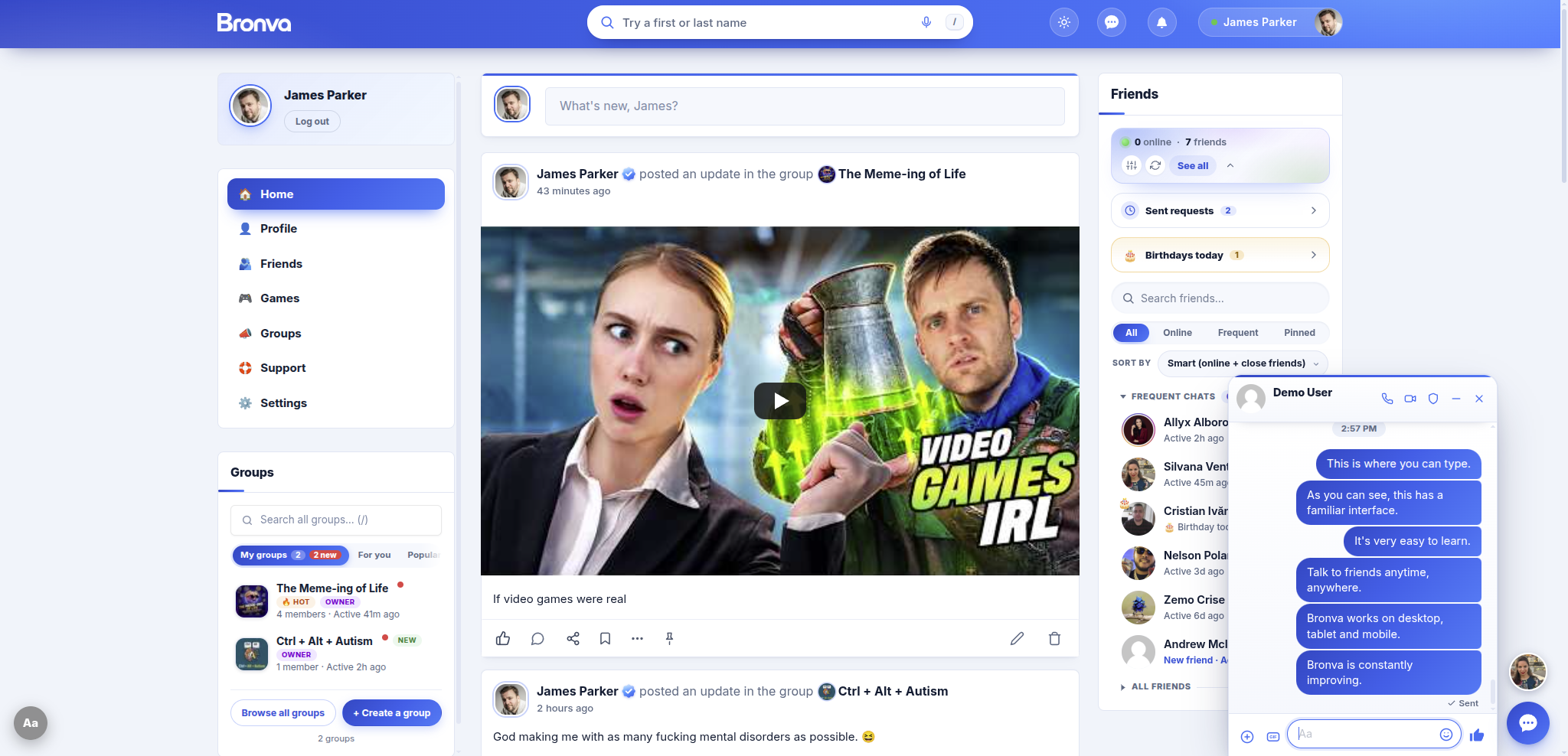


Why finding friends feels better on Bronva
Fast and clean
Search is quick, tidy and easy on the eyes, with no clutter standing between you and your people.
Built for free expression
Bronva welcomes open conversation, while keeping firm rules against threats, harassment and illegal material.
You’re in control
You decide whether you’re found, who sees your details, and who can contact you.
Made for the world
Translated interface, right-to-left support and times shown in your own time zone, so everyone feels at home.
Safety built in
Reporting, blocking, muting and a Safety Centre are always close at hand, in the feed and in chat.
Always improving
Bronva is improved constantly, and your ideas shape what comes next. Suggest a feature.
Next steps
Sending and Managing Friend Requests
Connect with the people you’ve found.
Using Bronva Messenger
Start chatting straight away.
Changing Privacy Settings
Control how you appear in search.
Member Search and Discovery
Learn more about search features.
More helpful guides
Completing Your Profile
Help friends recognise you.
Changing Your Profile Photo
A friendly face helps you be found.
Friends and Connections
How friendships work.
Groups and Communities
Meet people who share your interests.
Online Status
See and control when you’re active.
Notifications
Stay in the loop your way.
Profile Privacy
Choose who sees what.
Languages and Translation
Use Bronva in your language.
Installing Bronva as an App
Add Bronva to your home screen.
Getting Started
New here? Start with the basics.
Frequently Asked Questions
Answers to common questions.
Bronva Games
Take a break with free browser games.
Still need a hand?
Our team is happy to help, wherever in the world you are.
Bring your people with you
Bronva is a clean, fast social network built for free expression, and we’re always improving it. It grows best when friends join together, so invite someone you care about today. Need help? Email support@bronva.com.
Join Bronva Suggest a featureShare Bronva with friends and family
Or copy the invite link (tap to select it):
https://bronva.com/social/register/

Founder of Bronva. Your feedback shapes what we build next.
Bronva is for people aged 16 and over. Search results depend on each member’s own profile and privacy choices, so we can’t guarantee that any particular person will be found or that profile information is complete or accurate. Please use search and member information respectfully and lawfully, and in line with our rules. Use of Bronva is subject to our Terms and Conditions, Privacy Policy and Community Guidelines. This guide is general information and may change as Bronva improves. Nothing here affects your statutory rights.
Bronva is available to members worldwide, and laws, emergency numbers and available features can differ by country. This page is general information and is not legal, medical or safety advice. If you or someone else is in immediate danger, contact your local emergency services.
↑ Back to top